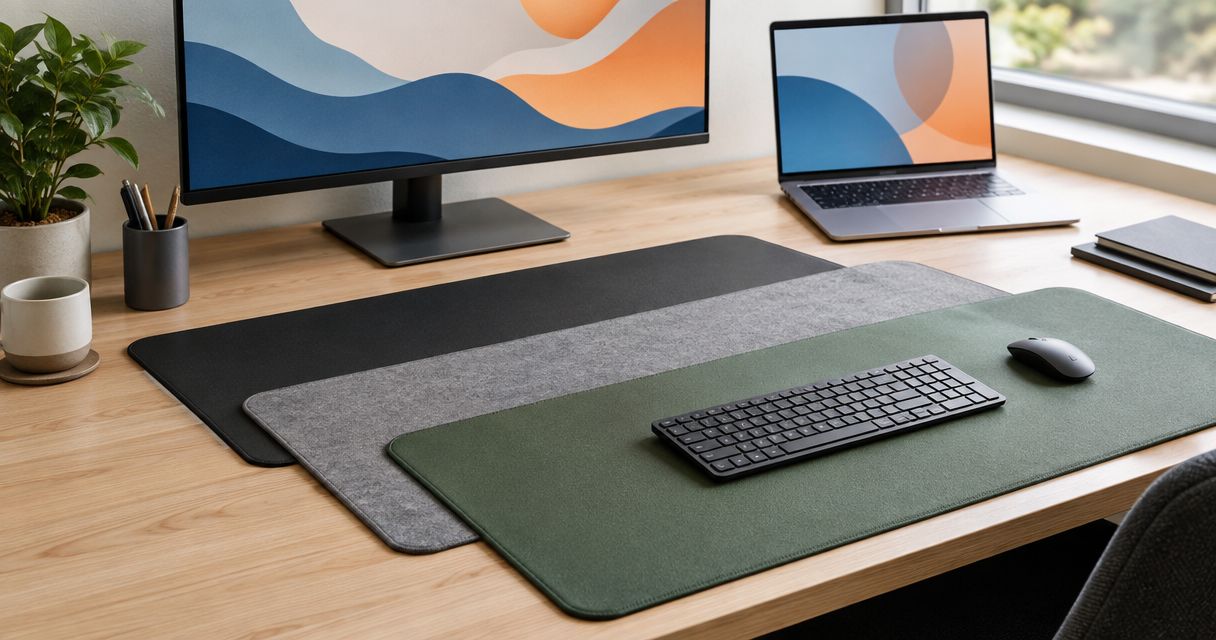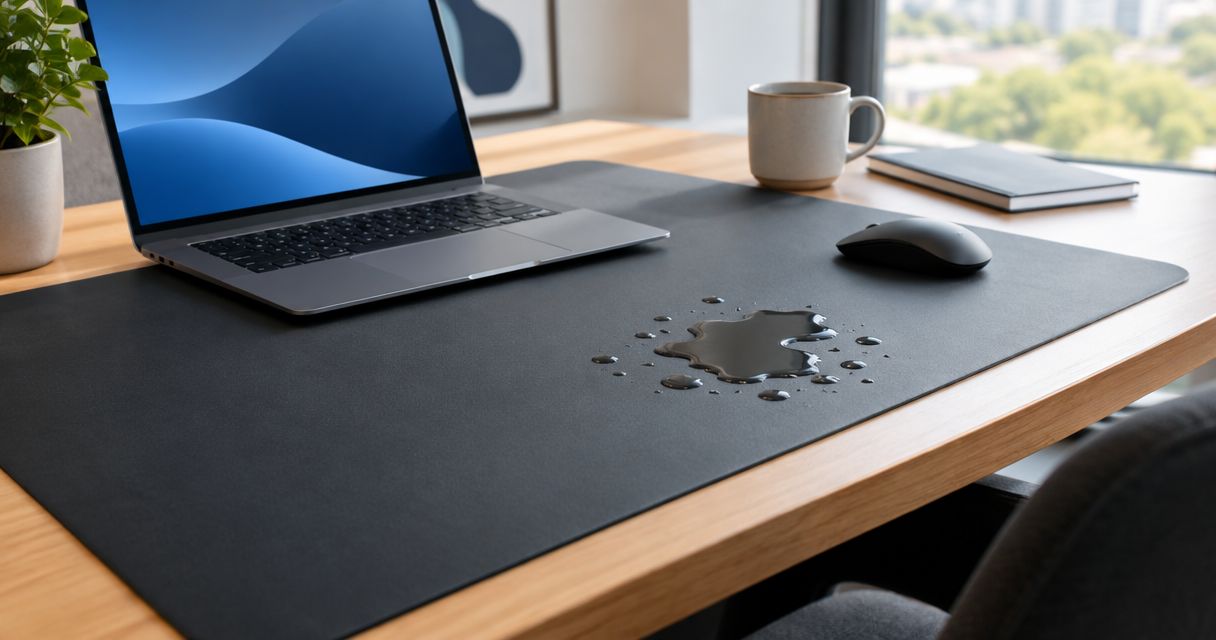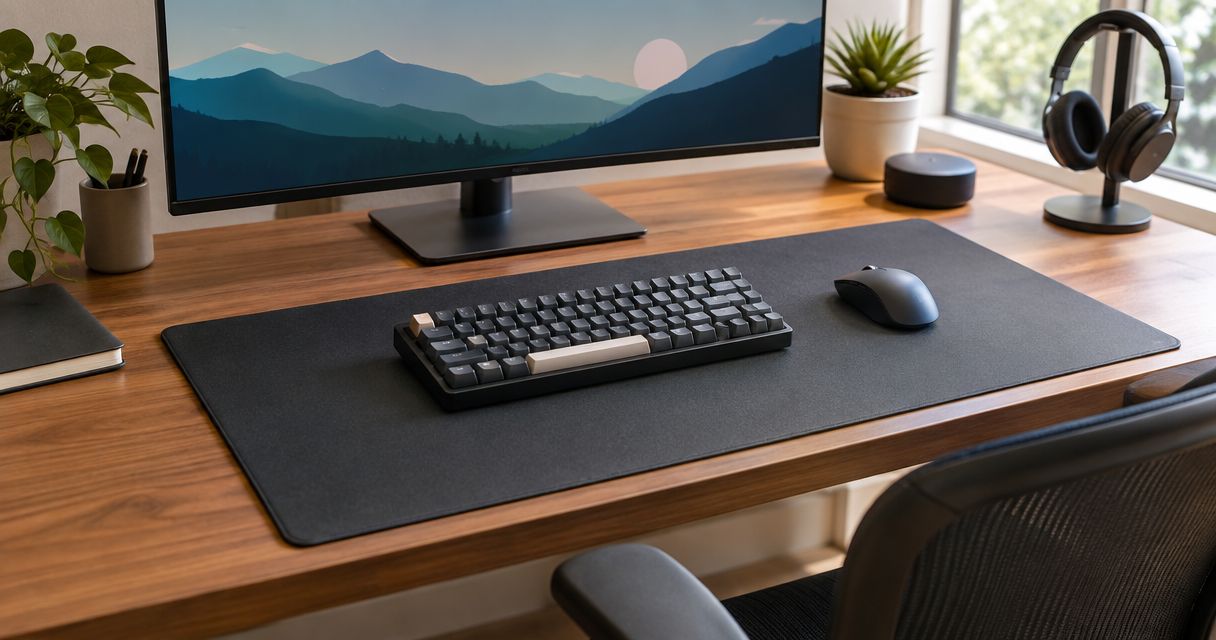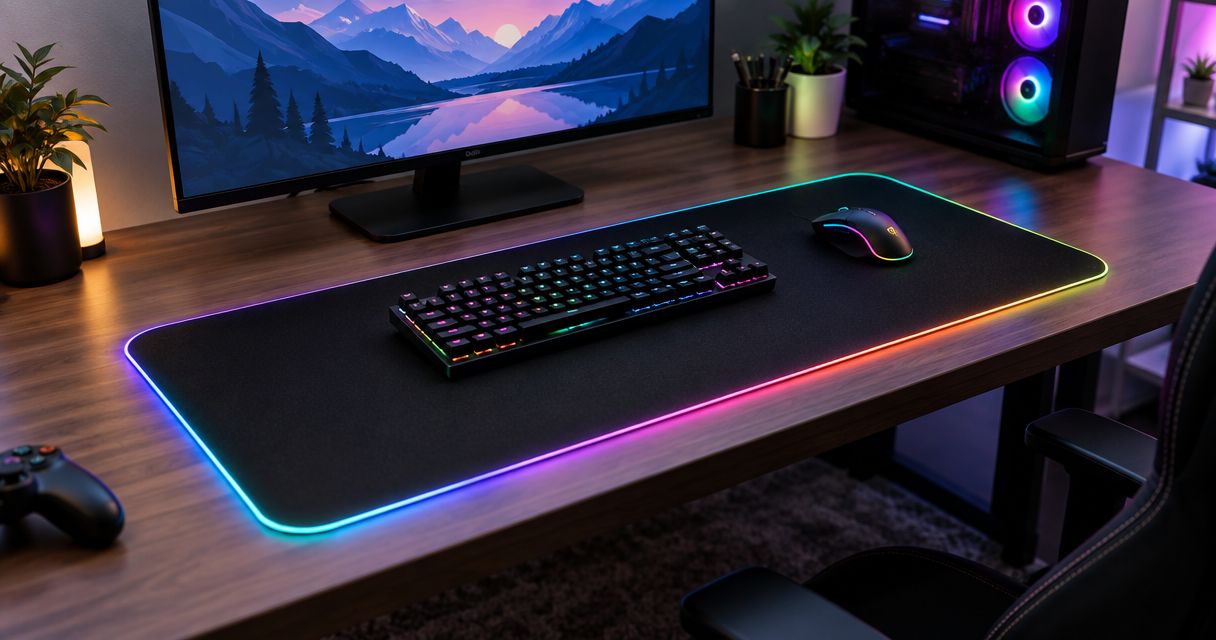
Best overall: an extended cloth RGB desk mat with perimeter lighting. Best for coordinated lighting: a software-synced RGB mat. Best for simple operation: an RGB mat with onboard controls. For the best RGB desk mats for gaming in 2026, rank mouse space and comfort ahead of lighting effects.
- The best RGB desk mats for gaming prioritize usable mouse space, comfortable edges, and accessible lighting controls.
- Choose an extended cloth RGB mat as the default for a keyboard-and-mouse gaming setup.
- Choose software synchronization only when the mat explicitly supports your existing lighting system.
- Browse Surfacetheorystudio desk mats when choosing the surface separately from your setup’s RGB lighting.
Why this matters
RGB lighting does not determine whether a desk mat suits your mouse movement. An attractive illuminated border still gets in the way if the controller occupies your mouse lane or the keyboard leaves too little room for aiming.
Choose the surface first and the lighting system second. This guide ranks configurations by their best use case, so you can match a listing to your desk instead of treating every illuminated mat as interchangeable.
If you prefer to choose the mat independently of lighting, browse Surfacetheorystudio desk mats and assess external lighting separately. That is a different approach from buying a mat with an integrated illuminated edge.
What makes the best RGB desk mats for gaming?
Use these criteria to evaluate a 2026 shortlist before choosing a lighting effect:
- Usable mouse space: Compare the mat’s footprint with the keyboard position and your full mouse movement, not just the empty desktop.
- Surface feel: Choose a surface suited to your preferred glide and stopping feel. RGB does not establish either quality.
- Edge comfort: Check where your forearm crosses the illuminated border and whether the controller enters your playing area.
- Lighting control: Decide whether you want onboard controls or integration with an existing lighting system.
- Cable placement: Find the power connection and trace its route to an accessible port without crossing your mouse cable.
- Cleaning instructions: Follow the listing’s care guidance for the complete mat, including its electrical components.
Do not treat these criteria as equally important. A lighting effect cannot compensate for a mat that fails the space or comfort checks; eliminate those options before comparing controls.
Best RGB desk mat configurations at a glance
These are buying configurations, not individual product endorsements. Match the features in a product listing to the row that describes your setup.
| Ranked option | Best for | Standout feature to seek | Key limitation |
|---|---|---|---|
| Extended cloth RGB mat | A shared keyboard-and-mouse surface | Perimeter lighting around usable cloth space | Requires room for the mat and its connection |
| Software-synced RGB mat | Coordinated lighting across devices | Explicit support for your lighting system | Introduces software and compatibility requirements |
| Onboard-control RGB mat | Lighting without another control application | Accessible physical lighting controls | Effects remain limited to the supplied controls |
| Compact RGB mat | A separate mouse area on a crowded desk | A footprint that leaves other equipment accessible | Less room for broad mouse movements |
| Non-illuminated mat with external RGB | Choosing desk artwork independently of lighting | Separate control over the mat and ambient lighting | Does not provide an integrated illuminated border |
The first option is the default. Move to another row only when its specific advantage solves a requirement your setup actually has.
1. Extended cloth RGB mat: best for shared keyboard-and-mouse space
An extended cloth RGB mat combines a keyboard-and-mouse surface with an illuminated perimeter. Choose this configuration when you want both devices on one mat and have room to keep the lighting connection outside your mouse path.
The important dimension is the usable area remaining after you position the keyboard. Product photography often shows a tidy arrangement, but your keyboard angle and mouse movement determine whether that arrangement works for you.
Extended cloth RGB mat pros:
- Gives the keyboard and mouse a shared surface.
- Lets you position both devices within one defined footprint.
- Adds perimeter lighting without placing a separate light on the mat.
Extended cloth RGB mat cons:
- Takes up desk space beyond the mouse area alone.
- Places an illuminated edge where your forearm might cross it.
- Adds a power connection that needs a clear cable route.
Best for: You want a single surface beneath your keyboard and mouse, with lighting around its edge.
For a 2026 setup, check the mat’s dimensions against your actual keyboard position before evaluating its effects. Buy this configuration when the usable area fits your full mouse movement; skip it when the keyboard crowds that area.
2. Software-synced RGB mat: best for coordinated device lighting
A software-synced RGB mat is designed around lighting control through a compatible application or system. Choose this configuration when matching the mat to other illuminated devices matters more than operating the mat independently.
Compatibility must be explicit. A listing that says RGB does not, by itself, establish that the mat works with your keyboard’s lighting application or supports the same effects.
Software-synced RGB mat pros:
- Provides application-based control when supported by the product.
- Can coordinate lighting with compatible devices.
- Suits a setup where you already manage lighting through software.
Software-synced RGB mat cons:
- Requires checking the supported software and operating system.
- Makes lighting control dependent on the supported system.
- Adds configuration work compared with physical controls.
Best for: You already use a lighting system and want the mat to participate in it.
Check current compatibility documentation for your 2026 shortlist rather than assuming that matching brand names guarantee integration. Buy a software-synced RGB mat only when the listing explicitly supports your intended lighting system; skip it otherwise.
3. Onboard-control RGB mat: best for software-free lighting
An onboard-control RGB mat lets you adjust its lighting using physical controls on the mat or its controller. Choose this configuration when you want lighting without managing it through another application.
The controls still need to be usable. Look for an explanation of how you change effects, adjust brightness, and switch lighting off; a photograph of a button does not explain its functions.
Onboard-control RGB mat pros:
- Provides a physical place to change lighting settings.
- Separates routine lighting adjustments from desktop software.
- Suits users who want to operate the mat independently.
Onboard-control RGB mat cons:
- Limits adjustments to the functions supplied by the controller.
- Requires reaching the controls when you want a change.
- Does not establish synchronization with other devices.
Best for: You want direct lighting control and do not need coordinated effects across your setup.
Place the controller outside your normal mouse movement and away from where your keyboard rests. Buy an onboard-control RGB mat when its documented controls cover your needs; skip it if coordinated software lighting is essential.
4. Compact RGB mat: best for a separate mouse area
A compact RGB mat puts the illuminated surface beneath the mouse rather than beneath both the keyboard and mouse. Choose this configuration when a larger mat would interfere with other objects or connections on your desk.
A smaller footprint is useful only if it still accommodates your movement. Do not choose compact sizing solely because the product image looks proportionate beside a keyboard.
Compact RGB mat pros:
- Leaves the keyboard outside the mat’s footprint.
- Lets you position the mouse surface independently.
- Keeps more desktop space outside the illuminated surface.
Compact RGB mat cons:
- Provides less movement area than a larger mat.
- Keeps the keyboard on a separate surface.
- Still needs space for its controller and cable.
Best for: You need an independent mouse surface and have limited room for a shared mat.
Test your normal mouse movement on the desk before choosing the footprint. Buy a compact RGB mat when your movement fits comfortably inside it; skip it when you regularly need more room.
5. Non-illuminated mat with external RGB: best for design-first setups
A non-illuminated desk mat with separate lighting is an alternative to an RGB mat, not an integrated RGB product. Choose this configuration when the mat’s artwork or surface matters more than having light built into its border.
Surfacetheorystudio sells desk mats on Etsy. Consider Surfacetheorystudio desk mats when you want to choose the surface independently of your gaming setup’s lighting. Evaluate the mat and the external lighting as separate purchases with separate requirements.
Non-illuminated mat with external RGB pros:
- Separates your choice of mat from your lighting controls.
- Lets you change the mat without replacing integrated lighting.
- Keeps lighting hardware off the mat itself.
Non-illuminated mat with external RGB cons:
- Does not create an illuminated border within the mat.
- Requires a separate lighting arrangement.
- Requires checking placement and cables for that separate lighting.
Best for: You want a particular desk-mat design and do not require integrated perimeter lighting.
Do not mistake nearby ambient light for a feature of the mat. Buy this configuration when design flexibility is the priority; skip it when an illuminated mat border is non-negotiable.
Check the fit before you choose
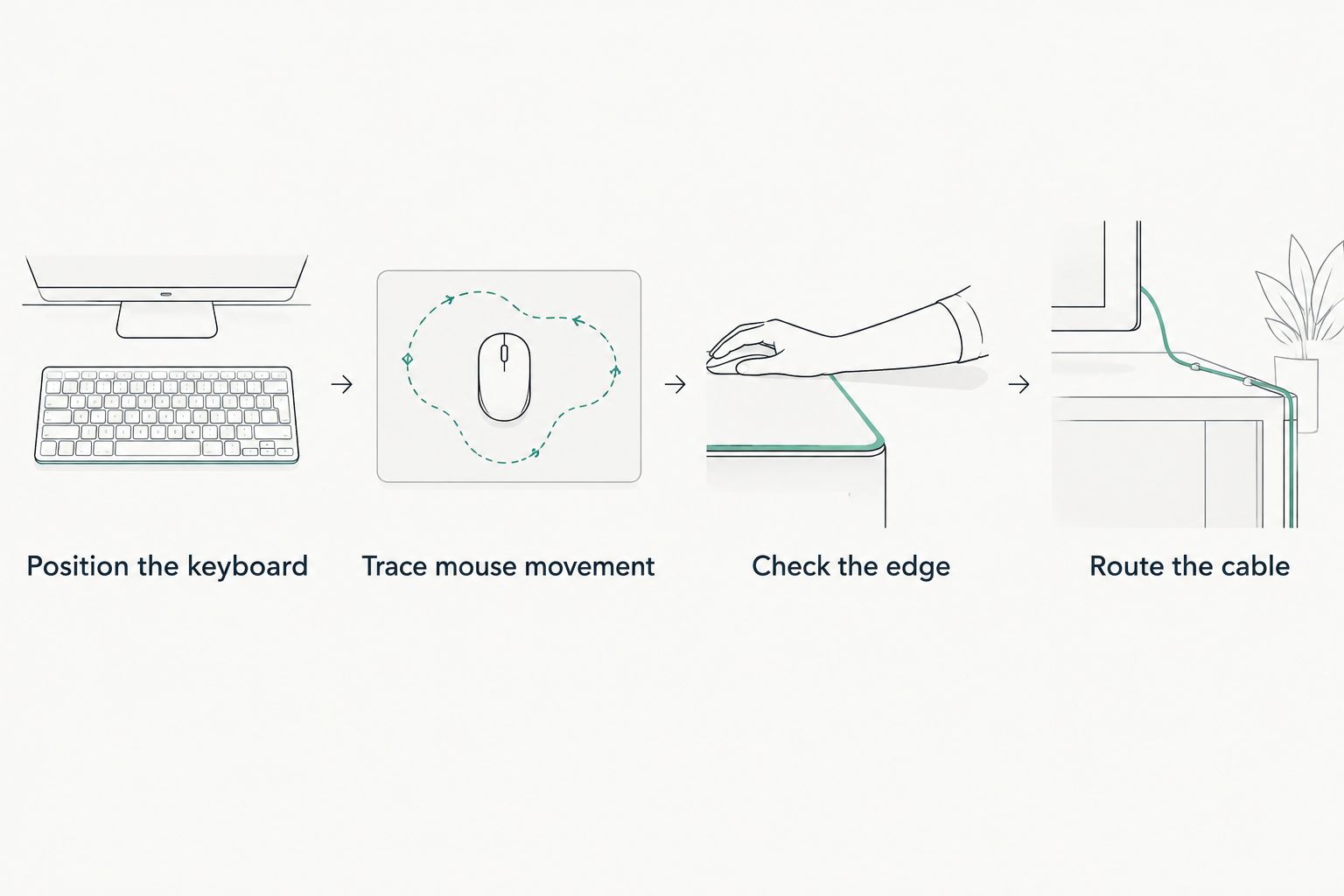
A useful 2026 buying check starts with your equipment in its normal position. Leave the keyboard angled as you actually use it, and keep the microphone base, monitor stand, and other objects where they belong.
- Position the keyboard. Mark the space it occupies, including its cable connection.
- Trace mouse movement. Move through your normal aiming range and mark the area you use.
- Check the edge. Identify where your forearm crosses the proposed mat boundary.
- Route the cable. Trace the connection from the controller to the intended port.
Compare dimensions in the same units. 1 inch equals 2.54 centimeters; 10 inches equals 25.4 centimeters; 20 inches equals 50.8 centimeters. These are measurement conversions, not recommended mat sizes.
Use the complete footprint when checking fit, then inspect the location of the controller. A mat can fit on the desktop while its control housing still occupies the space you need for your mouse.
How these configurations are ranked
The ranking prioritizes usable mouse space, surface choice, and edge comfort before lighting control. Cable placement and cleaning instructions complete the decision because both affect how the mat works on your desk.
Extended cloth RGB mats take the default slot because that configuration addresses a shared keyboard-and-mouse layout. Software synchronization, onboard controls, compact sizing, and separate lighting each solve a different requirement; none automatically makes the surface better for gaming.
Use the ranking as a decision tree. Start with the default, identify the requirement it fails, and move to the configuration that addresses that requirement.
Which RGB desk mat should you choose?
Choose an extended cloth RGB mat if you want the default shared-surface setup. Confirm that it leaves enough mouse space, keeps its controller clear, and offers the lighting controls you need.
Choose software synchronization for documented integration, onboard controls for independent operation, or compact sizing for a separate mouse area. Choose a non-illuminated mat with external lighting when surface design matters more than a built-in border.
For your final 2026 decision, discard any option that fails the fit check. Comparing effects after that step keeps decoration from overruling usability.
FAQ
What are the best RGB desk mats for gaming in 2026?
An extended cloth RGB mat is the default configuration for a shared keyboard-and-mouse setup. Choose software synchronization, onboard controls, or compact sizing only when that feature addresses a specific requirement.
Does RGB lighting make a desk mat better for gaming?
RGB lighting does not establish better mouse tracking, glide, or comfort. Evaluate the surface, usable movement area, and edge separately from the lighting effects.
Should I choose a large or compact RGB desk mat?
Choose a large mat when you want the keyboard and mouse on one surface, and a compact mat when you need a separate mouse area. Check your actual movement before deciding on the footprint.
Do RGB desk mats need software?
Not every RGB desk mat uses software controls. An onboard-control configuration uses physical controls, while a software-synced configuration requires checking its supported application and system.
Can I synchronize an RGB desk mat with my keyboard?
Choose synchronization only when the mat explicitly supports the lighting system you intend to use. RGB labeling alone does not establish compatibility with your keyboard.
Can I wash an RGB desk mat?
Follow the product’s cleaning instructions rather than treating an RGB mat as an ordinary washable cloth surface. Do not assume that its controller, lighting components, or connections can be submerged.
Is a regular desk mat with separate RGB lighting a good alternative?
A regular desk mat with external RGB suits a setup where surface design matters more than an integrated illuminated border. Surfacetheorystudio sells desk mats on Etsy; assess lighting separately when taking this approach.
One last thing
Before you commit, imagine the mat with its lighting switched off. If the surface, fit, and edge would still suit your desk, the lighting is an addition rather than a distraction from a poor choice.
Then check the controller location once more. That small part belongs outside your playing area, not merely somewhere the product photograph makes it look tidy.